

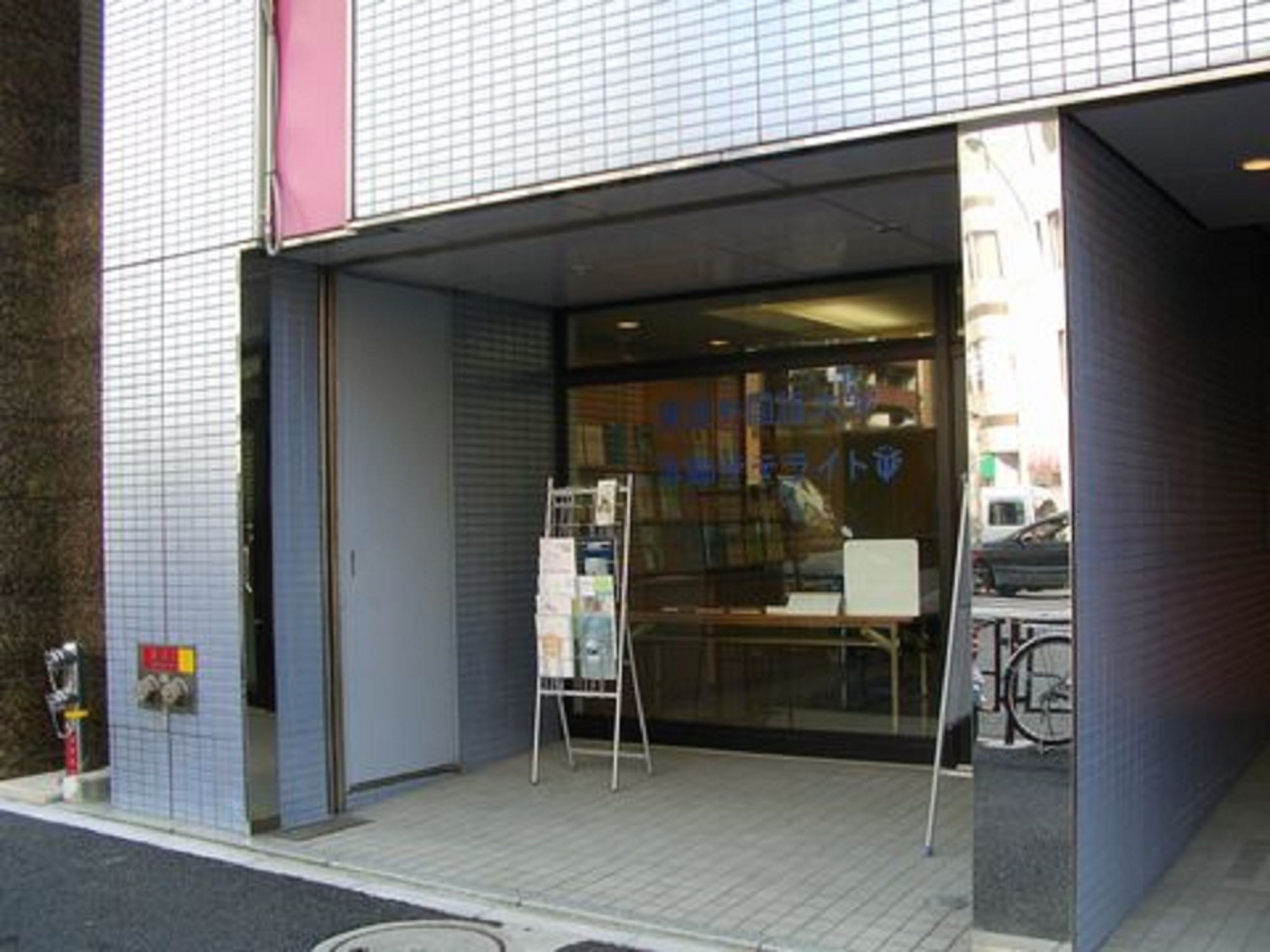
Hongo System (A-G)
In September 2024, Hongo System (A-G) was installed in the 3rd floor seminar room and 4th floor seminar room of Hongo Satellite.
If you wish to use (1)Advance Reservations(1) and (2).YouTube Video(2 hours and 25 minutes) to watch, and (iii) after completing the use of the system, the followingPost-use checklist.(Google Forms) to file a report.
YouTube video (how to use)
Table of Contents
00:01 1. overview of the Hongo system
08:50 2. installation location
11:48 3. rules
16:09 4. equipment other than Hongo system
19:40 5. a. Electronic blackboard
34:41 6. B. PressIT
52:31 7. c. Conference video bar
1:06:22 8.D. Sound System
1:34:22 9. e. PTZ camera
1:50:03 10. f. Conversion adapters, g. Extension cables, etc.
1:55:40 11. specific examples of settings
2:11:09 12. how to clean up
2:21:20 13. if you have any trouble
Terms of Use
- Advance reservations are required to use the Hongo system (A-G).
- When making a reservation for a seminar room at Hongo Satellite, please indicate your wish to use the Hongo system.
See also.Hongo Satellite
- When making a reservation for a seminar room at Hongo Satellite, please indicate your wish to use the Hongo system.
- Before use, be sure to read the instructions on how to use the product.YouTube Video(2 hours 25 minutes) Watch.
- After usePost-use checklist.Please report your findings at
- Please refrain from using the Hongo system (A-G) without prior reservation.
- Some equipment can be used without prior reservation. Equipment not marked with a yellow management sticker (e.g., projectors, folding screens, wireless microphone sets, etc.) may be used without a reservation.
- Any user/organization that fails to abide by rules (1) through (3) will not be allowed to use the Hongo system (A-G) in the future.
Support
- Before using the Hongo system (A-G), it is mandatory to watch the YouTube video on how to use the system.
- If you have any problems or questions that cannot be resolved after watching the video, please contact us.The telephone support is available only during the opening hours of the Educational Informatization Support Office at the Fuchu Campus.
- See also.Opening Date and Time(In principle, weekdays from 8:15 a.m. to 6:00 p.m.)
- Tel: 042-330-5417
- After watching the video, please use the telephone support if you are unable to resolve the issue on your own.
- Priority will be given to support services in the Research and Lecture Building. Please note that it may take some time to respond to your request.
Practice usage (Fuchu Campus)
- The same system as the Hongo System (A-G) is installed in "Small Meeting Room 1" in the Main Administration Building at the Fuchu Campus. Using this system, students can practice how to use the Hongo system.
- Please be sure to make your own reservation for "Small Meeting Room 1".(The Information Technology Support Office for Education is not the window for reserving meeting rooms.)
- If you have any questions during the practice, you can receive support only during the days when the Information Technology Support Office for Education is open. Please ask questions and get advice from the staff regarding any operation that you do not understand.
- See also.Opening Date and Time(In principle, weekdays from 8:15 a.m. to 6:00 p.m.)
- Tel: 042-330-5417
- After watching the video, please use the rush support if you still have questions.
- Priority will be given to support services in the Research and Lecture Building. Please note that it may take some time to respond to your request.
Introduction of each equipment
※ PC is not installed. Please prepare separately.
A: Electronic blackboard
- This is the same model as the electronic blackboard installed in the Research and Lecture Building on the Fuchu Campus.
- Please refer to the following page for usage instructions.
See also.electronic blackboard
B: PressIT
- This is the same model as PressIT installed in the medium and large lecture rooms of the Research and Lecture Building on the Fuchu Campus.
- Please refer to the following page for usage instructions.
See also.PressIT
C: Conference video bar (AVer VB350)
- Connect the C cable (Video Bar) at the bottom of the electronic blackboard screen to the PC used for Zoom and other applications.
- Microphone, camera, both built in.
- Automatic voice tracking function is available. It can be used by turning on the voice tracking by remote control operation.
D: Sound system (Yamaha YVC-1000, others)
- Connect the D cable (Sound USB) at the bottom of the elevating desk with the sound system to the PC used for Zoom or other applications.
- Two types of microphones are available: omni-directional and wireless. Depending on the content of the class or event, the following applications are possible
- For fast-paced, unspecified speech: omni-directional sound harvesting microphones
- If you want to bring your voice online with the highest possible sound quality: handheld microphone
- Both can be used at the same time, but on the online side, there may be a slight doubling of voices. The omni-directional microphone can be muted (voice OFF) with the mute button in the center of the handset, and the handheld microphone can be muted (voice OFF) with the switch in the hand, so the sound quality will improve slightly if the voice is turned OFF while not in use.
- An omni-directional sound harvesting microphone is also built into the C conference video bar. It does not matter which one you use.
- Speakers are also built into the conference video bar in C and the electronic blackboard in A. Choose whichever you prefer for your PC or Zoom's audio output destination. It does not matter which one you use, but it is common practice to have the microphone and speakers on the same equipment.
E: PTZ camera (AVer DL30)
- A PTZ camera is also built into the C: Conference video bar fixed above the electronic blackboard, but if you want the camera to move freely within the classroom, use the E: PTZ camera.
- Please use presets 1 to 9 on the remote control freely.
- When both C: Conference video bar (AVer VB350) and E: PTZ camera (AVer DL30) are connected to a PC, it is possible to switch between cameras on the Zoom. In this case, the shortcut key in Zoom, Alt + N, can be used to quickly switch between cameras without using the mouse. (However, this may be somewhat inconvenient for notebook PCs and other PCs with built-in cameras, since the built-in camera will also be included in the switching target.)
F: Conversion adapter
- We have prepared conversion adapters of commonly used types in advance. However, not all adapters can be used with all terminals due to compatibility issues with PCs, etc. Please prepare your own adapters as much as possible.
- Please be careful not to lose or take them home.
G: Extension cable
- USB-A (3m): Can be used when the cable length is not long enough for connection to a PC.
- USB-C (3m): When connecting a PC and A: Electronic Blackboard with this cable, both video and touch operation can be completed with a single cable. (When ※PC supports DisplayPort Alternate Mode)
- HDMI (3m): HDMI cable can be extended when used with conversion adapter F2 (HDMI Extension).
Restoration (photo)
- After using the Hongo system (A to G), please put away cables, child units, etc., referring to the pictures below.
Preparing...
利用者報告への対応状況
「利用者チェックリスト」へのご協力ありがとうございます。
皆様からのご報告は、遠隔地にある本郷サテライトの設備の維持管理に大変役立っています。いただいた報告をもとに、年1~2回程度、現地で機材の点検・メンテナンスを行っています。今後とも、チェックリストへのご協力をよろしくお願いいたします。
| 年月 | 場所 | machinery and tools | 不具合・破損など | 対応状況 |
|---|---|---|---|---|
| 2026年4月 | ビル入口 | インターフォン | インターフォンで呼び出しても4Fセミナー室の電話が鳴らない。 | 当室ではインターフォンは管理していないため、報告いただいた状況は施設企画課へお伝えしました。再発するようであれば、施設企画課へご報告ください。 |
| 2026年4月 | 4F | electronic blackboard | Macで変換アダプターF3を介して電子黒板に接続した際、PC映像が途切れることがあった。 | メンテ時には、Windows PCでは不具合が再現しなかったため、Macとの相性に起因する可能性があります。 |
| 2026年6月 | 3F | ビデオバー | ビデオバーの映像が乱れる。 | メンテ時に同じ現象が発生しましたが、本体側のケーブルの抜き差しで解消したため、ケーブルの接触不良だったと思われます。解消済みです。 |
| 2026年10月 | 3F | 電子黒板、PTZカメラ、Wi-Fi | 電子黒板の画面が消えることがあった。PTZカメラが途中で途切れた。会議中に「ネットワーク不安定」とメッセージが表示された。 | 電子黒板、PTZカメラについては、メンテ時には不具合が再現しなかったため、PCとの相性問題だった可能性があります。ネットワークについてもメンテ時には異常はなく、接続状況は良好でした。当日、一時的にネットワークが不安定になっていた可能性があります。再発するようであれば、情報企画室へご報告ください。 |
| 2026年10月 | 3F | HDMIケーブル | 電子黒板にPCの映像が映らない。引出しに入っている予備の短いHDMIケーブルに変えると映るが、長いケーブルでは映らない。 | 5mの長尺のHDMIケーブルに劣化が見られたため、HDMIケーブルを交換しました。 |
| 2026年10月 | 4F | ワイヤレスマイク | マイク受信機のうち1台の電源をOFFにできない。 | ボタンの内部が破損しているため、OFFにできません。使用はできるため、このままご使用ください。次回のメンテナンス(2027年3月下旬)で、機器の交換を行う予定です。 |